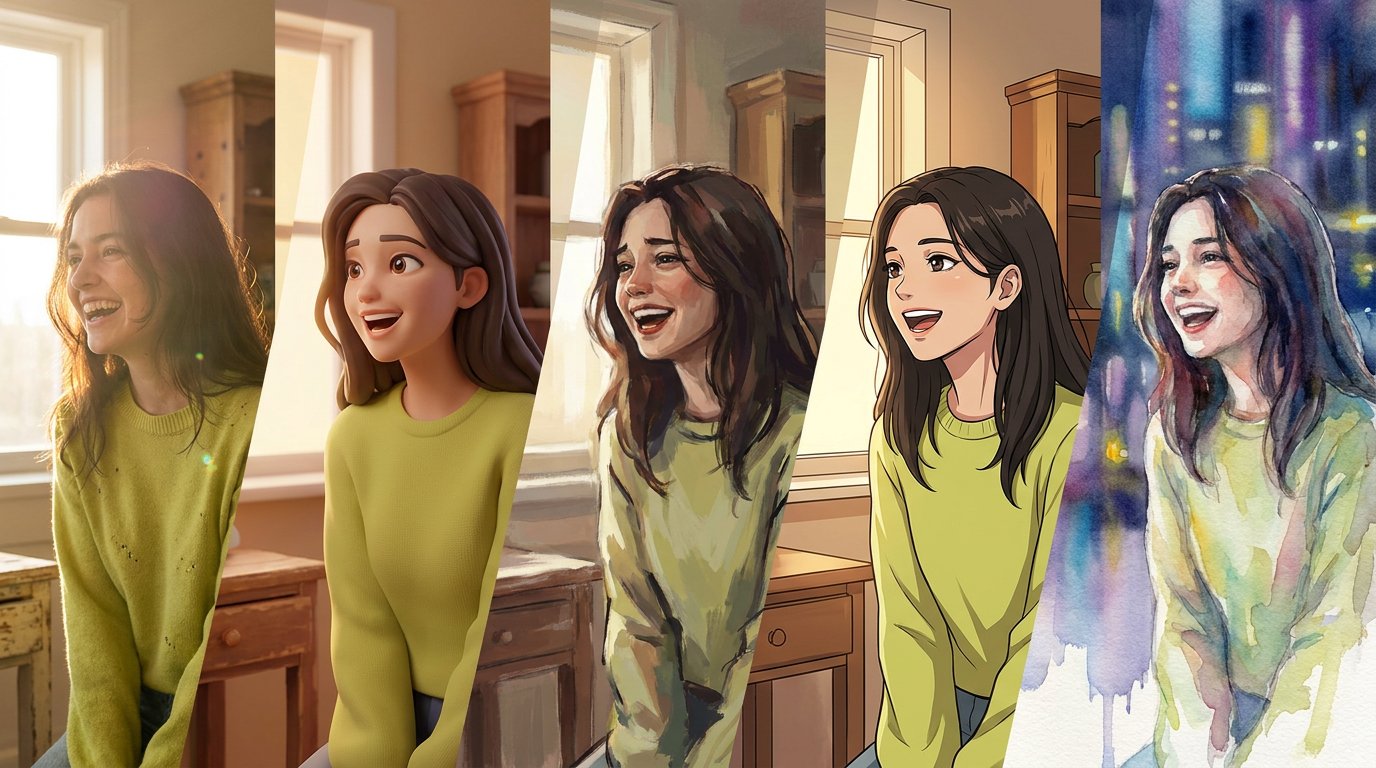
AI portrait styles are visual treatments that give a photo a different look, from camera-real polish to imaginative art. Photo, 3D, concept art, anime, watercolor, and cyberpunk each bring a distinct mood to a familiar selfie.
The right look can change how a portrait feels. Soft and painterly reads differently from graphic, futuristic, or realistic. This guide explains how AI portrait styles shape color, texture, lighting, and mood, and how to choose a direction that suits your image.
Key Takeaways
- Compare portrait looks by their texture, lighting, and level of realism to find a direction that fits your image.
- Learn how different art treatments can shift a portrait’s mood while retaining recognizable elements of the original photo.
- Spot the visual cues that set anime apart from cyberpunk, then decide which mood feels right for your next image.
- Explore AI styles and virtual photoshoots with Camity by choosing a photo and a mood, then saving or sharing the looks you like.
Table of Contents
1. AI portrait style presets, including photo, 3D, concept art, anime, and watercolor
AI portrait styles apply a visual direction to a photo. A photo preset can keep skin, clothing, and lighting close to camera-real. A 3D look adds sculpted forms and smoother surfaces. Concept art can shift a selfie toward a storybook character or dramatic game portrait. Anime emphasizes graphic outlines and expressive features. Watercolor softens edges into pigment-like washes. Black-and-white presets focus attention on contrast, while vintage photography may add muted tones and a nostalgic finish.
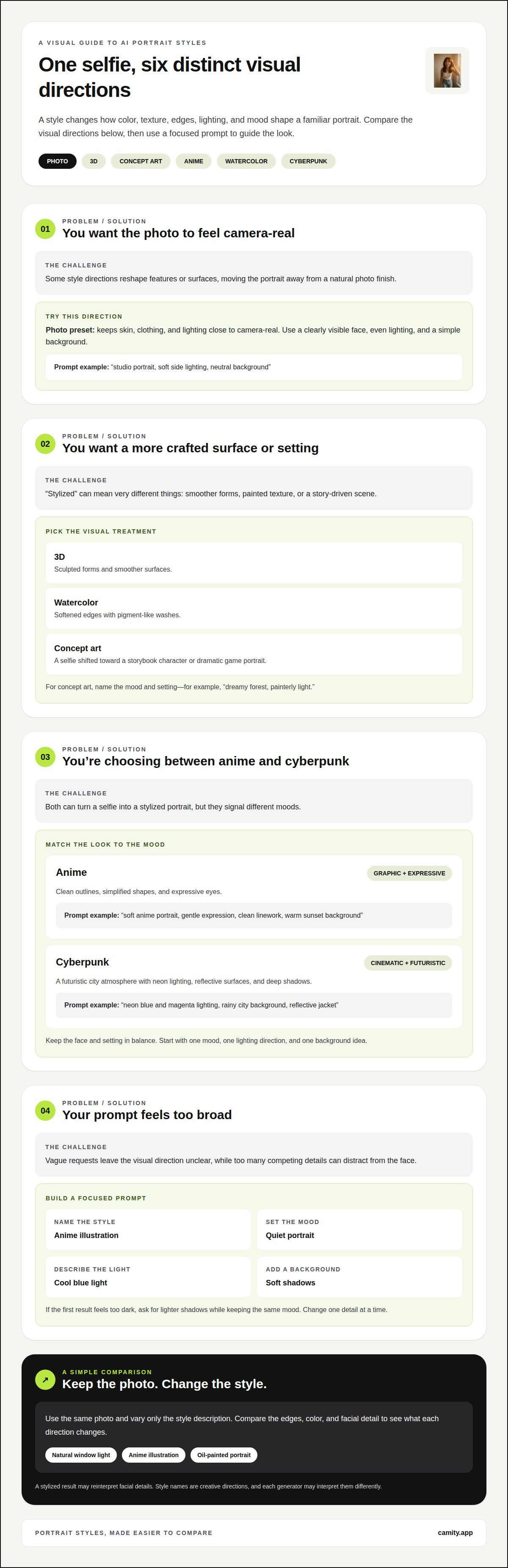
To generate a portrait, upload a photo and pair it with a text prompt. Try “studio portrait, soft side lighting, neutral background” for a polished look. For concept art, describe the mood and setting, such as “dreamy forest, painterly light.” Clear prompts name the style, lighting, colors, and background. A stylized result may reinterpret facial details, so keep the prompt focused.
For a stronger likeness, choose a photo with your face clearly visible, even lighting, and a simple background. A direct, front-facing selfie without a heavy filter gives the tool less visual clutter. Keep hair and facial features unobstructed. Studio portrait styles often work well with plain backdrops and soft light; black-and-white or vintage effects can bring shadows and expression forward.
Free portrait generators vary in their looks and prompt controls. Compare whether they accept photo uploads and offer the styles you want, such as anime or watercolor.
For iPhone or Android, look for an app that supports photo uploads and offers useful style choices. A clear preview and simple prompt controls make it easier to try different looks.
Portrait ownership depends on the generator’s terms and the image you provide. Before publishing a generated portrait, review those terms and make sure you have permission to use the source photo.
For privacy, consider how an app handles uploaded images and stored results. Choose a photo you’re comfortable submitting, especially if it shows an identifiable face.
2. AI image style definitions and effects
An image style is a visual direction that guides how an image looks. It can shape color, texture, edges, lighting, and background. Think of it as a mood expressed through several visual choices. A soft portrait might use gentle contrast and muted color, while a dramatic version might deepen shadows and sharpen highlights. Some tools can edit selected areas while leaving the rest intact.
Effects describe visible changes within a style. A glow can soften bright edges, grain can suggest an older film image, and painted texture can make skin and clothing look brushed rather than camera-real. Effects can work together, but each changes the portrait’s feel. For example, a warm tint and fine grain can suggest nostalgia without changing the pose.
Realistic, anime, and oil-painting styles treat facial detail differently. Realistic results aim for natural proportions and familiar lighting. Anime often simplifies features and emphasizes expressive eyes. Oil painting adds visible brushwork and richer, blended color. Choose based on whether you want a camera-like finish, graphic expression, or painterly texture.
To describe a look clearly, name the subject, mood, and visual details. Try “quiet portrait, cool blue light, soft shadows” rather than “make it beautiful.” Then change one detail at a time. If the first result feels too dark, ask for lighter shadows while keeping the same mood. This makes it easier to see which prompt words shape the image.
For a useful comparison, keep the same photo and vary only the style description. Test “natural window light,” “anime illustration,” and “oil-painted portrait.” Notice changes in edges, color, and facial detail. That simple side-by-side approach helps you choose a direction without changing several prompt elements at once. Try a few AI image styles and see which visual mood feels most like you.
3. Anime and cyberpunk portraits
Anime and cyberpunk can both turn a selfie into a stylized portrait, but they create different moods. Anime often favors clean outlines, simplified shapes, and expressive eyes. Cyberpunk leans into a futuristic city atmosphere, with neon lighting, reflective surfaces, and deep shadows. Choose anime for a graphic, character-led look, or cyberpunk for a cinematic, high-tech mood.
For anime, describe the features you want emphasized. Try “soft anime portrait, gentle expression, clean linework, warm sunset background.” Add details such as a school uniform, flower, or hair ribbon if they suit your idea. A specific object gives the image a focal point, while a simple background keeps attention on the face.
Cyberpunk prompts work best when their elements feel connected. Describe “neon blue and magenta lighting, rainy city background, reflective jacket.” The lighting sets the color mood, while rain and reflections suggest a city scene. Add one distinctive object, such as glowing headphones, rather than crowding the portrait with competing details.
Keep the face and setting in balance. A detailed skyline, bright signs, dramatic makeup, and several accessories may compete for attention. Start with one mood, one lighting direction, and one background idea. Then change a single phrase, such as “rainy street” to “neon studio,” to explore another version.
For a more personal result, describe the expression and framing too. “Anime close-up, relaxed smile, pale blue background” creates a different feel from “cyberpunk side profile, serious expression, glowing city lights.” If the face feels overwhelmed, simplify the background or reduce the neon detail. Small prompt changes can shift a portrait from quiet character art to bold futuristic fiction.
4. Available portrait and art styles
Portrait tools can offer camera-like finishes, illustrated looks, and imaginative scenes. Common choices include photorealistic, anime, 3D, watercolor, oil painting, concept art, vintage, and cyberpunk. Each changes the image’s visual language. Watercolor softens edges; oil painting adds brushlike texture; vintage treatments can mute colors. Treat these as creative directions, not fixed definitions, since each generator may interpret a style differently.
Which styles feel most popular? Photorealistic portraits, anime, painterly effects, and cinematic cyberpunk are familiar starting points. Their appeal comes from clear visual contrasts: natural detail, graphic features, visible paint texture, or neon atmosphere. Pick one that fits your mood, then refine the background or lighting instead of changing everything at once.
Style availability varies between generators. Some present named presets, while others let you describe a look with a text prompt. A tool with both approaches can make it easier to move from “watercolor” toward “loose watercolor painting with a soft green background.” Rather than relying on a style-count claim, compare whether the options cover the looks you want and let you guide details.
Use this quick selection process after you upload a portrait:
- Choose a finish, such as realistic, 3D, or painted.
- Name the mood, such as dreamy, bold, or nostalgic.
- Add one visual detail, like soft window light or a floral background.
- Keep the rest of the prompt simple, then adjust one phrase after viewing the result.
This keeps each comparison useful. If an oil-painted portrait feels too formal, try watercolor with softer color. If a realistic look feels familiar, shift to concept art for a more imagined scene. Explore a new look with creative portrait styles and see which direction suits your photo.
Camity: AI styles
Camity lets you explore AI styles and virtual photoshoots using your photo. Choose an image and a mood, then save or share the looks you like. It’s an easy way to try a fresh direction with an everyday selfie.
Your gallery is stored on your device. Camity doesn’t guarantee an exact likeness or result, so each generated portrait may interpret your features differently.
Explore a fresh look for your portrait with Camity’s AI styles and virtual photoshoots.
Give your next portrait a fresh direction
Your next image doesn’t need a grand plan. Start with a feeling you want it to carry: calm, playful, cinematic, or a little surreal. Then choose one detail to support it, such as a softer palette, brighter background, or sharper silhouette. A small creative choice can set the whole mood and give an everyday photo a different point of view.
When you’re ready to try that idea on a photo, Camity offers AI styles and virtual photoshoots. Camity’s team brings a thoughtful creative eye to these portrait options, making it easy to explore a look that feels personal. Treat each result as a fresh direction, then keep the version that feels most like you.
Explore portrait options with Camity and give your next image room to surprise you. The right AI portrait styles can turn a familiar photo into a new expression of your mood. Start with one idea, follow your curiosity, and enjoy the creative process. Your next favorite portrait could begin with a simple change in style.
Frequently Asked Questions
What are AI image styles?
AI image styles are visual directions that guide how a generated picture looks. They can make the same subject feel like a magazine portrait, graphic novel character, or painted scene. For example, choose a soft editorial look for a personal profile or a surreal treatment for a creative post. AI portrait styles work best when the mood suits the image’s intended use.
What are the best prompts to get stunning AI portraits?
Strong prompts describe a clear subject and a specific atmosphere. Try “close-up portrait, thoughtful expression, warm golden-hour mood, elegant editorial feel.” Add details that matter to you, such as freckles, a favorite color, or a quiet setting. Avoid piling on conflicting directions such as “minimalist” and “ornate.” If the result misses the mood, revise one phrase instead of rewriting everything.
How do I create an AI portrait from a photo?
Start with a photo you have permission to use, then select it in the image tool. Choose a visual direction and add a short description of the mood or setting. For example, describe a calm profile portrait with a simple backdrop. Review the result for details that matter, such as facial expression, clothing, and background, then adjust your wording if needed.
What prompts work best for different AI portrait styles?
Match prompt details to the style’s defining features. For an editorial portrait, specify composed framing and polished styling. For fantasy art, describe an imagined setting and a clear focal detail. For a retro look, name an era-inspired mood and subdued color palette. Keep the subject consistent while changing the style words, so you can tell which description shapes the result.
Can AI portrait generators create professional headshots?
AI styles can create portraits with a polished, headshot-like appearance, such as a centered face and uncluttered background. For a resume or professional profile, describe a natural expression, neat clothing, and even lighting. Review the result closely before using it. Generated images may alter small facial details, so choose a portrait that still feels like you and suits the impression you want to make.
Which AI portrait generators offer the most styles?
Style availability varies by generator. Compare whether each offers the looks you want, such as anime, watercolor, 3D, or cyberpunk, and whether it lets you guide details with prompts.