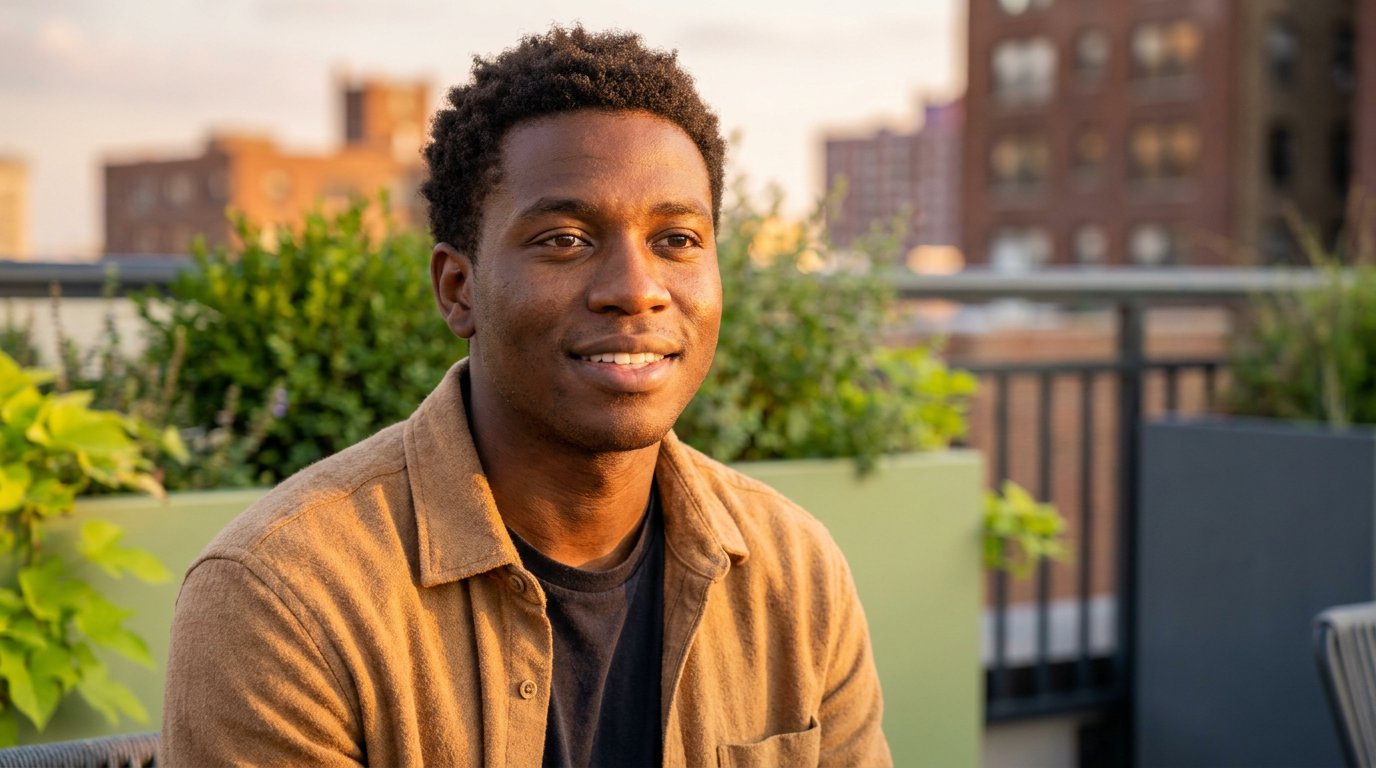
Your next profile picture can start with a photo you already have: an AI virtual photoshoot transforms it into photorealistic portraits, headshots, and profile pictures for social, dating, or work.
Start with a clear photo, choose a mood, and explore new looks that still feel like you, from relaxed and friendly to polished and composed.
Learn how the process works, what makes a good starting photo, and how to choose portraits that feel natural, current, and ready to share.
Key Takeaways
- Start with a clear, well-lit photo and a simple background to give portrait generation a cleaner starting point.
- Explore different creative styles, settings, and looks to find portraits that still feel like you.
- Choose profile pictures to match the mood and purpose of each social, dating, or work profile.
- Learn how virtual portraits can support personal profiles and other creative uses, and what to know when editing with Camity.
Table of Contents
How to create photorealistic portraits with AI?
An AI virtual photoshoot uses a photo to generate a portrait in a chosen style or setting. Apps vary in image quality, style options, and ease of use. Compare how well they preserve your features and how easily you can select a result.
Photo Upload and Style Selection
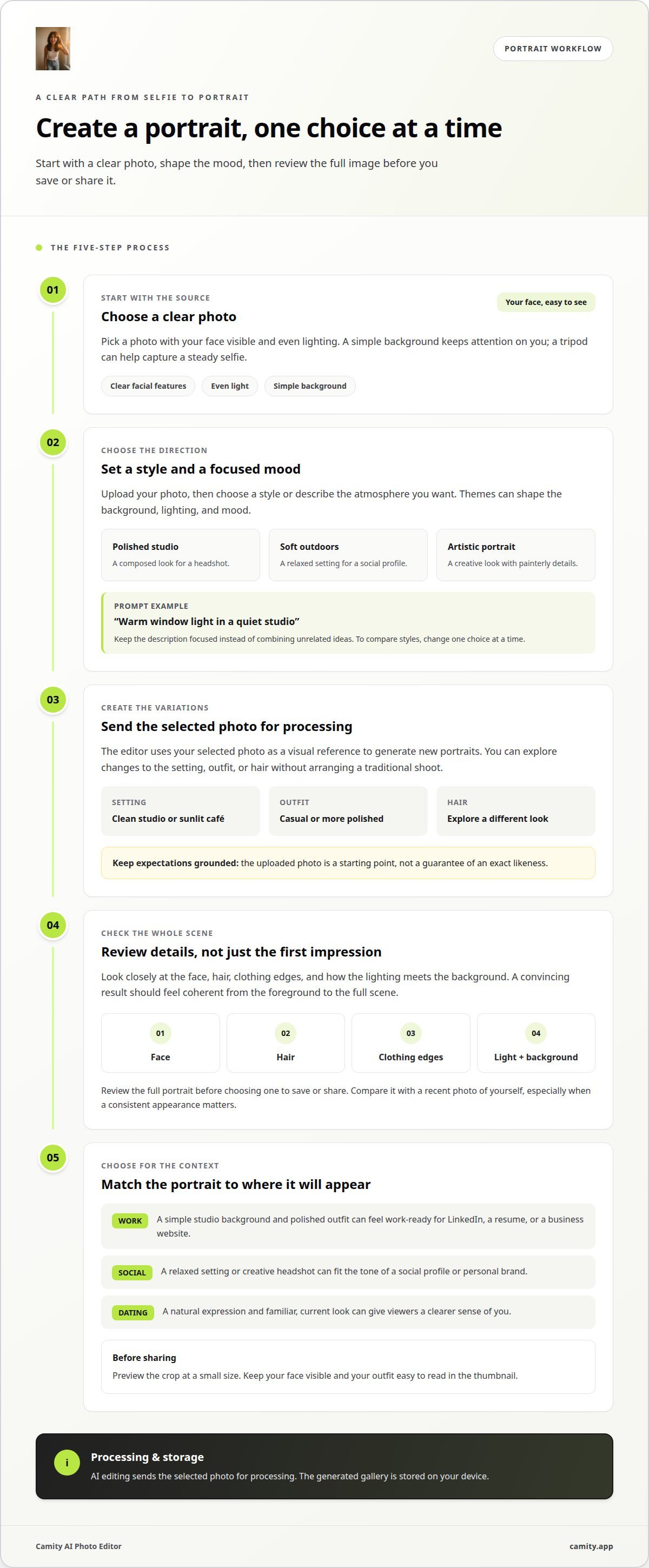
Begin by choosing a clear photo with your face visible and even lighting. A simple background helps keep attention on you, while a tripod can help capture a steady selfie. Upload the image, then select a style or describe the mood you want. The selected photo is sent for processing, where the editor uses it to create new portraits.
Treat your uploaded photo as a starting point, not a guarantee of an exact likeness. Choose an image that shows your features clearly, then review the generated options before saving or sharing a favorite.
Photoshoot Themes and Creative Styles
Styles set the portrait’s atmosphere. Try a polished studio look, a soft outdoor setting, or an artistic portrait with painterly details. The theme can shape the background, lighting, and mood, while your photo provides a visual reference. Use a focused description, such as “warm window light in a quiet studio,” instead of combining unrelated ideas.
For creative results, change one choice at a time. Keep the setting and adjust the mood, or keep the mood and try another theme. This makes it easier to see which direction suits your profile.
Image Quality and Ease of Use
Compare portraits closely, checking the face, hair, clothing edges, and how the lighting meets the background. A convincing image should look coherent from foreground to scene, not just polished at first glance. Review the full portrait before choosing one to save or share.
Style range matters too. Look for options that let you move between a natural headshot and a more imaginative portrait. An easy workflow should let you choose a photo, select a theme, and review results without complicated editing. The right fit depends on the look you want and how naturally the portrait represents you.
Transform Selfies to Stunning Headshots with AI Photo Shoot
A virtual photoshoot can generate product imagery in a few minutes; portrait processing time depends on the service. From a selfie, you can explore new backgrounds, fashion, and hair without arranging a traditional shoot.
Background, Outfit, and Hair Changes
Choose a setting that fits the photo’s purpose, such as a clean studio background for a work headshot or a sunlit café for a social profile. An outfit can shift the mood from casual to polished, while a hairstyle can help you explore a different look. Keep your description focused: for example, ask for a charcoal jacket and a softly lit studio rather than several unrelated changes.
Review the whole image after generation. Check that the background, outfit, and hair look consistent with the lighting and with one another. A realistic result depends on the complete scene, not just a convincing face.
Photo Generation Time
Processing time varies by app and transformation. A background change and a full fashion portrait may involve different edits, so leave time to generate and review options. If an app uses credits, check how generations use them before you begin. This helps you plan your choices without assuming every version takes the same time.
For a headshot, select a selfie where your face is easy to see, then choose a polished style and uncluttered background. For dating and social media, try a more relaxed setting or an artistic look that suits the profile’s tone. Generated images can offer variety, but review each one for details such as hair edges, clothing, and background consistency.
Once you find an image that feels right, download it or share it where you need it. Editing sends the selected photo for processing, and the generated gallery is stored on your device. Explore virtual photoshoot styles for fresh profile-picture ideas from your selfie.
Profile pictures for social media and dating apps
AI-generated portraits can suit LinkedIn, resumes, business websites, and advertising when the image fits its purpose. For professional settings, choose a result that still looks like you.
A profile photo sets a tone before someone reads your bio. For a dating app, a relaxed outdoor portrait can feel approachable; for LinkedIn, a simple studio background and polished outfit can feel work-ready. Match the setting to the impression you want to make.
On social media, use different portraits to support different parts of your personal brand. A creative headshot can suit an artist’s profile, while a clean, camera-facing portrait can work for a consultant’s business page. Keep your face recognizable across platforms, even when you change outfits or backgrounds.
For dating profiles, choose an image that feels current and familiar. A dramatic artistic style may catch attention, but a natural expression gives viewers a clearer sense of you. Milestone portraits can take a different direction: a birthday look, graduation-style image, or celebratory setting can mark the moment without changing your everyday profile.
Consider how the image looks at a small size. On a phone, faces and expressions matter more than fine background details. Preview the crop in the app or page layout before posting. Make sure your face remains visible and your outfit still reads clearly in the thumbnail.
For LinkedIn, a resume, a business website, or an advertisement, choose a portrait suited to the role and context. Keep professional images straightforward, without backgrounds or clothing that distract from your work. For social media and dating apps, a more playful photoshoot style may better fit your personality. Let the platform, audience, and message guide your choice.
Before sharing, compare the generated image with a recent photo of yourself. Check facial details, hair, and clothing for a consistent appearance. A polished portrait should feel like you, not a different person assembled for the camera. Choose a version you’d feel comfortable discussing in person.
Virtual photoshoot use cases
Virtual portraits can suit personal profiles, creative projects, and product campaigns. Choose how to use one based on how closely it needs to reflect real life. Generated portraits can alter facial details or represent features unevenly. Review likeness, skin tone, and expression before sharing, especially when accuracy matters for trust.
For dating, try a warm outdoor portrait or relaxed café setting that matches your profile’s tone. Even a beautiful image should feel familiar, so compare it with your everyday appearance. A themed birthday or graduation portrait can mark the milestone without a separate photo shoot. Social profiles can use a more artistic look for posts, while a headshot may suit a biography or creator page.
Personal branding benefits from visual consistency. For example, use similar lighting and colors across a LinkedIn profile, portfolio, and business bio. Different outfits can show different sides of your work, while a recognizable face helps connect the images. A clear selfie can be the starting point for exploring those settings and styles.
Businesses can test generated product imagery against current listing images in an A/B test. A virtual shoot can also complement occasional in-person shoots rather than replace them. For example, a small brand might explore a new background for a product listing, then use a physical shoot when exact product details matter. Generated options can help test a visual direction before a wider campaign.
Before posting, check whether the image could mislead viewers about your appearance, clothing, or setting. Avoid using a generated portrait to imply an event or credential that didn’t happen. For dating and professional profiles, choose a version you’d feel comfortable discussing face-to-face. Try a fresh portrait direction with a virtual photoshoot.
Camity: Virtual photoshoots
Camity turns a photo you choose into creative portraits with AI styles and virtual photoshoots. Pick a photo, explore a look, then save or share the versions you like. It’s a simple way to give an everyday selfie a fresh mood or create a new profile picture.
AI editing sends your selected photo for processing, and your gallery is stored on your device. Generated portraits may not match your likeness exactly, so review each result and choose one that feels like you before sharing.
Try a style that fits your plans, from a relaxed social portrait to a more polished headshot. Contact Camity if you’d like help exploring virtual photoshoots.
Choose a look that feels like you
Your next profile picture doesn’t need to define you forever. Treat an AI virtual photoshoot as a chance to explore a fresh mood, then choose an image that suits the moment and the platform. A small creative change can make an everyday selfie feel new.
Camity offers AI styles and virtual photoshoots for turning your photo into portraits you can save or share. The Camity team brings a creative eye to the experience, making it easy to explore different directions from a familiar starting point. Choose a look that fits your plans, take a moment to review it, and keep the version that feels most like you.
Ready to try a new portrait style? Contact Camity about your photoshoot. Your next favorite profile picture could start with the photo already in your camera roll.
Frequently Asked Questions
How does AI conduct a photoshoot?
AI creates a portrait digitally rather than capturing a real camera session. The result may suggest a scene or pose that never happened, so treat it as a creative image, not evidence of an event. For a company bio or personal profile, choose an image that represents you honestly. For a clearly artistic post, you have more freedom to explore imagined settings.
Are there recommended image sizes or dimensions for the best results?
The right dimensions depend on where you plan to use the image. A square crop may suit an avatar, while a wider image can fit a page banner. Keep a full copy before cropping, then preview the final version in its intended layout. This helps you spot cut-off hair, shoulders, or other details before sharing.
How do you generate AI images from images online?
Start with an image you own or have permission to edit, and save it to your device. Open an image-generation app, select the file, and describe the change you want in plain language. For example, ask for a warmer color palette or a more illustrated finish. Review the result before posting, especially if the source photo includes other people.
What Can AI Photo Studio Do for Your Photo Needs?
An AI photo studio can help you explore visual concepts without setting up a physical studio. You might test a softer color mood for a creator profile or make a more imaginative portrait for a personal project. It works best as a creative tool when you have a clear purpose for the image. Decide where you’ll use it before choosing a visual direction.
What is a virtual photoshoot?
A virtual photoshoot creates portrait imagery digitally, without staging every detail in a physical studio. It can help you try a visual concept before planning a real session or create artwork with an imagined setting. The key distinction is that the scene is generated, so it shouldn’t be presented as documentation of a real-life moment.
What is the best AI photoshoot app without watermark?
Choose an app that clearly explains whether saved images carry a watermark, and preview the exported file before using it. Check the image at full size and in a profile crop, since small marks can be easy to miss on screen. Then consider whether the result suits your intended use and preserves the details you care about.